
Database monitoring is crucial to any application deployment. After all, databases manage data and sit deep in the stack. They are robust pieces of software, but their setup and maintenance require care and attention, since any problem can disrupt the business.

The Neo4j Graph Database provides a complete set of metrics that allow continuous monitoring of status, performance, and usage of everything important, from transaction lifecycle, memory utilization, driver sessions, all the way to cluster communication.
Neo4j metrics are exposed in different ways – as CSV files or JMX beans, and via the Graphite protocol or Prometheus endpoint – and they can be consumed by a variety of systems. Graphite is an application capable of storing and rendering metrics, and there are ready-to-use dashboards for Graphite/Grafana combinations, where the rendering is taken care of by the popular Grafana. Halin is a Graph App for monitoring Neo4j databases, developed by David Allen and now a Neo4j Labs Project. Halin provides extremely useful out-of-the-box insights about how a Neo4j system is performing. You should check it out if you haven’t already.
When you need to integrate with an existing monitoring infrastructure, it is not always possible or desirable to install new tools. As Prometheus becomes a widely used solution, it will likely be the preferred choice in many organizations for storing and querying time series data. Grafana is also a popular choice because it offers a single place to view all metrics, regardless of the source.
We didn’t find any ready-to-use Prometheus/Grafana templates for Neo4j, which is why we wrote this tutorial. Besides, the Neo4j database you want to monitor is often part of a bigger data-centric architecture. Data flows into the graph database from other systems, gets connected in a graph model, and then is served to other systems. In these cases, you might not find all the monitoring support you need in internal metrics alone, and you may want to add metrics in your procedures to get a better view of the processes involving Neo4j.
Showing how to do this is the second reason for this blog post. If you are interested, read along, and we’ll jump right in!
The Prometheus connection
Support for the powerful open-source monitoring and alerting tool Prometheus was first introduced in Neo4j in version 3.4. This feature is only available in the Enterprise edition of Neo4j. You can enable it with these two entries in the neo4j.conf file (more detailed instructions in the Knowledge Base):
# Enable the Prometheus endpoint. Default is 'false'.
metrics.prometheus.enabled=true
# The IP and port the endpoint will bind to in the format :.
# The default is localhost:2004.
metrics.prometheus.endpoint=localhost:2004
With this configuration, Neo4j starts a valid Prometheus endpoint that exposes metrics, and its job is done. It will be Prometheus that will poll – or scrape – metrics data from it.
After you install Prometheus, you just need to configure a scrape configuration in prometheus.yml like this:
# A scrape configuration containing the Neo4j endpoint to scrape:
scrape_configs:
  # The job name is added as a label `job=` to any timeseries scraped from this config.
  - job_name: 'neo4j-prometheus'
    scrape_interval: 10s
    static_configs:
    # target: ip address of the Neo4j server
    - targets: ['localhost:2004']
With this configuration, you can run Prometheus, and it will start collecting Neo4j metrics. You can check if it is working by opening the Prometheus browser at localhost:9090 and visiting the Status/Targets page. It should list your neo4j-prometheus job.
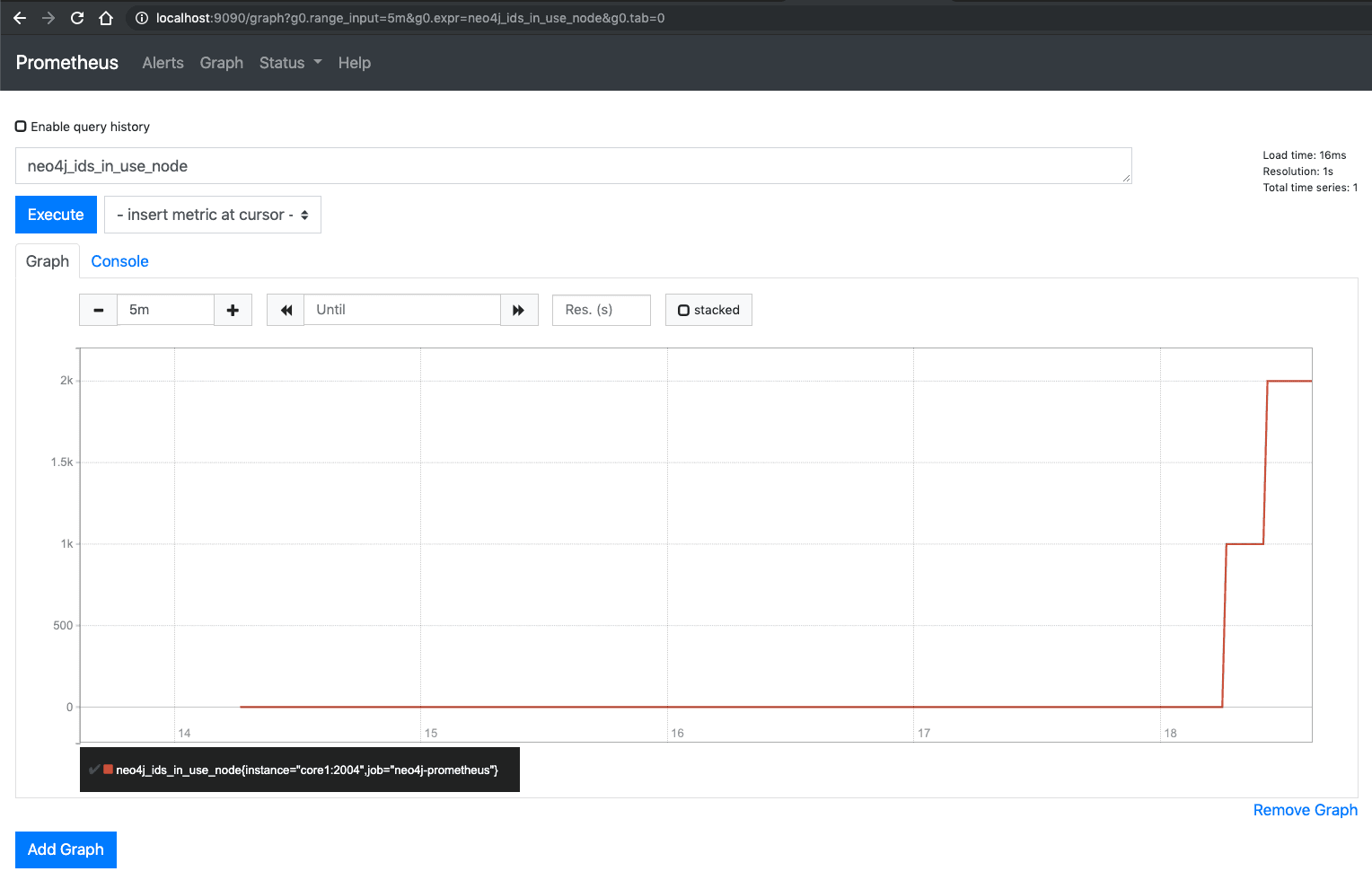
On the Graph page, you can choose any Neo4j metric from the dropdown. Just type “neo4j_” to list all the options. Note that dots in the original Neo4j metric names are replaced by underscores. When you run the query with the metric name, Prometheus renders a nice line chart of the time series. Congratulations, you just used PromQL, the Prometheus query language! We will explore it in detail in the next post.
Publish custom metrics from Neo4j procedures to Prometheus
So we have all Neo4j metrics in Prometheus. This is a good point to start discovering how your graph database behaves in different scenarios. Usually, you do not want to monitor only these Neo4j metrics, but you want to see the behavior of your custom database logic as well, for example, the creation rate of some business entities.
If you have your business logic implemented in stored procedures, you can easily monitor it in Prometheus by defining custom metrics inside the procedures.
Since the Neo4j server uses Dropwizard Metrics to collect the database-level metrics, it is a good idea to use this method to capture your application-level metrics as well. Metrics is a Java library that provides measuring instruments for Java applications. It has several modules; Neo4j uses the metrics-core and metrics-graphite modules, but in our case we will use only the metrics-core library.
In our procedures, we will define a MetricRegistry to register our metrics. For this, we need to instantiate a MetricRegistry class. We can have several metric registries, depending on the reporting strategy. If you want to use different reporting methods for different metrics, then you can have different registries. For example, if you want to report some metrics to the console, some to Prometheus, and some to a CSV file, you can organize your metrics into separate registries and use the corresponding reporters to produce the required output. Dropwizard provides a great collection of these reporters.
private static final MetricRegistry METRIC_REGISTRY = new MetricRegistry();In Dropwizard Metrics, you can use several commonly used metric types like Meter, Gauge, Counter, Histogram, and Timer. Neo4j publishes all its metric values as Gauges, which are the simplest metric type to publish a particular value. They may not be the best for all kinds of Neo4j metrics, so you can use different metric types in your application. In our example, we will use a Counter and a Timer metric.
Counter is used for recording incrementations (and decrementations). In our example, we register a Counter and use it to count the number of times the procedure runs.
Registering a Counter:
java
private static final Counter myCounter = METRIC_REGISTRY.counter(name(MonitorProcedure.class, "my_counter"));
Incrementing a Counter:
myCounter.inc();A Timer metric tracks multiple timing durations, represented by Context objects, and provides statistical data. We use a Timer to measure the execution time of our business method.
Registering a Timer:
private static final Timer myTimer = METRIC_REGISTRY.timer(name(MonitorProcedure.class, "my_timer"));
Using Timer to measure execution:
Timer.Context timerContext = myTimer.time();

//Do some business logic here
db.getAllLabels();

//Close Timer context
timerContext.close();
With Dropwizard, you can use different types of Reporters to publish your measurements. If you want to output your metrics to the console or a CSV file, then you can use the provided Reporters, such as ConsoleReporter, CsvReporter, Slf4jReporter, JmxReporter, and so on.
In our case, we will not use any reporter; instead, we will reuse the CollectorRegistry provided by the Prometheus client. To register a collector (DropWizardExports) with Prometheus, we register it when we initialize our Procedure class. This way, our metrics will be published on the Prometheus endpoint provided by Neo4j (localhost:2004).
Registering our MetricRegistry to the collector:
CollectorRegistry.defaultRegistry.register(new DropwizardExports(METRIC_REGISTRY));
Once you create your example plugin, you can install it to your Neo4j server, and verify metrics by calling
http://localhost:2004
Note that your metrics will be found among the default Neo4j metrics. To make it work, you have to call your procedure at least once, like with this Cypher query:
call example.monitoring
After that, you can see your custom metrics in the monitoring endpoint (this is the result after 20 invocations):
# A scrape configuration containing the Neo4j endpoint to scrape:
scrape_configs:
  # The job name is added as a label `job=` to any timeseries scraped from this config.
  - job_name: 'neo4j-prometheus'
    scrape_interval: 10s
    static_configs:
    # target: ip address of the Neo4j server
    - targets: ['localhost:2004']
You can find the example project here.
With the approach we described, you can monitor any aspect of your graph business logic and make sure your Neo4j database maintains continuous performance and health.
We use Neo4j Testcontainers in the integration test, especially the Neo4j Enterprise version. To make it runnable, you have to add a container-license-acceptance.txt file to the root directory of your test resources, containing the text neo4j:3.5.0-enterprise on one line. With this, you will accept the license terms and conditions. You’ll find more information about licensing Neo4j here. Or contact us directly at GraphAware.
We hope you enjoyed this post so far. Soon, we will publish the second part of “Monitoring Neo4j and Procedures with Prometheus and Grafana”. This will be a detailed tutorial on how to create a perfect Neo4j Dashboard. Interested? Stay tuned!
Update: Monitoring Neo4j and Procedures with Prometheus and Grafana – Part 2
This article was originally published in 2019 and reflects the Neo4j, Prometheus, and Grafana versions available at the time. Some configuration steps, metrics, and interface features may have changed in subsequent releases. The examples are retained for historical reference and may not reflect current best practices. For up-to-date guidance, please refer to the relevant product documentation.